
How to Send a Large File with Google Drive: The Definitive Cloud Infrastructure Guide
Published July 07, 2026 • By the askchadi Editorial Team
Digital communications regularly run into infrastructural limits. Whether you are a corporate network administrator deploying voluminous datasets, a multimedia producer transferring massive raw 4K video exports, or an educational content manager sharing archive data, you have undoubtedly run into the ubiquitous email file attachment bottleneck.
Standard electronic mail transport protocols limit direct data payloads to exactly 25 MB. Trying to pass anything heavier directly down standard email pipes triggers immediate delivery failures. To solve this, modern engineers turn to decoupled cloud storage architectures. Learning how to efficiently send a large file with google drive turns the problem on its head: instead of forcing raw binary data through rigid email servers, you host the file in a cloud repository and share an authorization link instead.
Bypassing Attachment Caps
Standard email systems restrict attachments to 25 MB. Google Drive acts as a secure external holding repository, generating an encrypted URL token that bypasses mail server restrictions completely.
| Platform / Tool | Size Limit | Primary Transfer Mode |
|---|---|---|
| Standard Email (Gmail, Outlook) | 20 – 25 MB | Direct Inline MIME Base64 Attachment |
| Google Drive (Free Account) | 15 GB Total Storage | Cloud Link Sharing via Shared URL Token |
| Google Drive (Google One / Workspace) | Up to 5 TB Single File | Cloud Link Sharing with Enterprise Permissions |
Core Execution Workflow
- Upload: Stage your large file into your secure Google cloud architecture via desktop browser or mobile application.
- Permissioning: Define the visibility level—restrict access to specific emails or generate an “Anyone with the link” public routing token.
- Integration: Seamlessly inject the asset into web documentation platforms like Google Docs or messaging suites.
Essential Technical Links
- Official Utility: Google Drive Web Portal
- Storage Tiers: Google One Storage Management
- Developer Documentation: Google Drive API Structure
The Core Technical Challenge: Why Email Attachments Fail
Traditional email infrastructures rely on protocols like SMTP (Simple Mail Transfer Protocol). When an email with a file attachment is sent, the binary file is encoded using Base64 strings. This process increases the overall payload size by roughly 33%. Consequently, a 20 MB asset on your local drive balloons into an operational footprint of more than 26 MB during transit, hitting the server-side limits enforced by modern internet service providers and email corporations.
To circumvent this layout, Google engineered an ecosystem that pairs its consumer email client with a powerful object storage system known globally as google drive. When you deploy files using this infrastructure, you decouple storage from communication. Instead of routing a multi-gigabyte file across the mail matrix, the digital asset remains stationary in a distributed datacenter. The recipient receives an optimized, cryptographic token link that gives them programmatic or interactive download rights.
System Architectural Limits and Storage Thresholds
Before initiating a large-scale data transfer over google drive, you must understand the underlying system constraints of your specific account tier. Failing to plan around these storage and API caps can result in aborted uploads or blocked downstream requests.
1. Consumer vs. Enterprise Allocation Matrix
Every default personal Google account comes provisioned with 15 GB of free cloud space. It is critical to recognize that this pool is shared across three independent pillars: Gmail data indexes, Google Photos asset libraries, and your core file storage drive. If your primary goal is to send a large file with google drive, check your exact storage capacity status at one.google.com before moving forward.
2. Single-File Volumetric Maximums
The upper bounds of Google’s cloud computing system are remarkably expansive. The system can accept single files up to 5 TB in size, assuming you have upgraded your underlying account to a paid subscription level with enough capacity.
askchadi Expert Box: The 750 GB Bandwidth Rule
Even if you have access to a 5 TB or larger enterprise storage layout, Google enforces a strict daily data ingress cap of 750 GB per user per day. If you run a script or upload sequential video bundles that cross this limit within a 24-hour cycle, your upload pipeline will be automatically throttled until the quota refreshes.
Step-by-Step Blueprint to Upload and Share Massive Assets
Executing a successful high-volume asset transfer requires precision to prevent local configuration dropouts or data-exposure vulnerabilities. Follow this precise execution matrix.
Phase 1: Staging and Local File Preparation
If you are handling complex folder structural systems or multiple files, do not upload them as scattered independent entities. Compressing your target files into a singular container format (such as .zip or .tar.gz) preserves the system file pathways and minimizes upload network handshakes. Furthermore, Google’s 2026 infrastructure upgrades allow users to seamlessly extract zipped containers directly in the cloud interface, maximizing local-to-cloud flexibility.
Phase 2: Ingress and Upload Tracking
- Open your web terminal browser and navigate directly to your primary engine console via
drive.google.com. - Drag your staged local archive container directly over the main dashboard interface viewport, or click the New icon element followed by File upload.
- Keep the browser page focused during the process. For files exceeding 10 GB, ensure your network adapter’s power-saving configurations are completely disabled to avoid physical timeout resets.
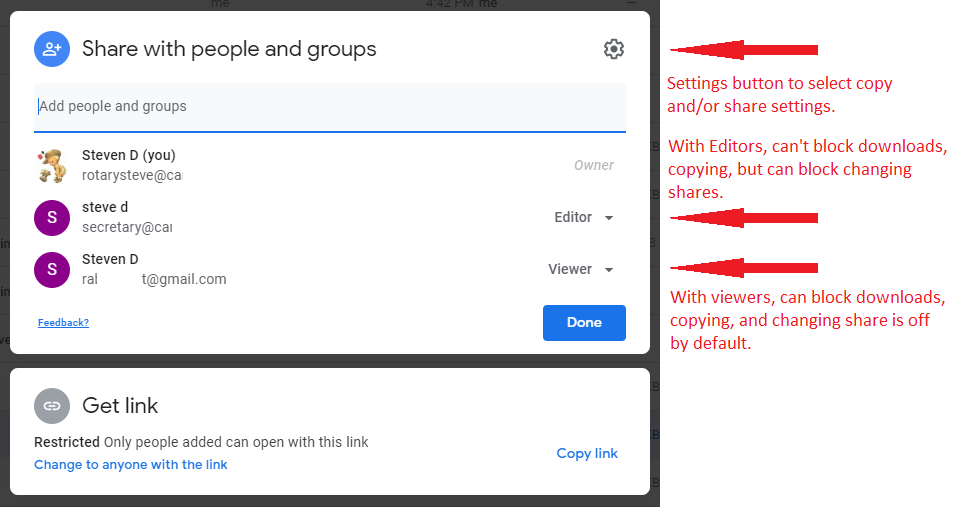
Phase 3: Mitigating Security Risks via Precise Link Sharing Permissions
Once your asset is hosted on the remote framework, you must explicitly set the permissions. Right-click the file and choose Share, which opens the control menu. Google Drive uses a multi-tiered security permission model to handle external links:
- Restricted Access (Default): Only explicitly whitelisted email identities can open the data resource path. This is ideal for secure intellectual property or enterprise environments.
- Anyone with the Link: This strips the authentication layer from the download target. Anyone who gets their hands on the alphanumeric URL string can access the resource. Use this carefully.
When applying permissions, you can assign one of three distinct access scopes:
| Access Role Level | Functional Permission Capabilities | Risk Profile Status |
|---|---|---|
| Viewer | Read-only download privileges. Cannot alter cloud properties or track internal comments. | Low Risk |
| Commenter | Read-only download access with the added capacity to inject metadata notes on google docs. | Medium Risk |
| Editor | Complete system control. Can overwrite data strings, delete underlying nodes, and modify external links. | High Risk |
Seamless Integration with Google Docs and Gmail Systems
One of the great advantages of using the Google cloud suite is how tightly its component apps fit together. You don’t have to bounce back and forth between different browser tabs to reference assets.
Embedding Links in Document Workflows
When compiling extensive reports or technical document structures within google docs, you can reference massive companion files directly using inline link expansions. Instead of pasting a raw, ugly URL string across the page, paste the drive hyperlink and hit Tab. The text engine will automatically transform the raw string into a clean, interactive object component called a “Smart Chip.” This gives collaborators a clear file preview and explicit file-type identification without cluttering your design layout.
Automated Gmail Routing Adapters
If you use Gmail to write emails, the software monitors your data payload footprint in real-time. The moment you use the local attachment tool to upload an item that crosses the 25 MB limit, the email program will pause the local upload. Instead, it automatically routes the file asset up to your default storage drive, wraps it in a stylized link container box, and places it neatly within the body of your text message. This keeps everything working smoothly without breaking your stride.
Advanced Troubleshooting: Overcoming Transfer Disruptions
When routing data packages that range into tens or hundreds of gigabytes, you may run into technical edge-case disruptions. Use these advanced troubleshooting strategies to stay on track:
1. Handling Mid-Stream Transfer Failures
If large uploads repeatedly stall out halfway through, the issue is usually caused by network packet loss or temporary ISP IP address lease rotation. To fix this, stop using browser-based web uploads and install the native desktop client asset (Drive for Desktop). This application breaks files down into smaller, managed chunks and automatically handles background retries if your network hitches.
2. Resolving Browser Out-of-Memory Errors
Very large browser-based file transfers can sometimes exhaust your local machine’s system RAM cache. If your browser crashes while processing massive uploads, clear your storage cookies or use an explicit command-line interface utility like rclone to stream your data files straight up to Google’s servers without browser overhead.
Technical Frequently Asked Questions
Q1: Does downloading a shared large file consume the recipient’s Google Drive storage quota?
Answer: No. The total storage volume footprint is billed entirely to the account owner who uploaded the asset. The person downloading the file via a shared link does not need any free space on their personal drive to download the asset to their local computer.
Q2: Can I set an expiration date on a shared link so it automatically deactivates?
Answer: Yes, but this capability requires a Google Workspace subscription or an eligible Google One premium tier. Under the advanced share menu, you can set custom link lifespans. Once the expiration timestamp passes, the link automatically revokes external download privileges.
Q3: Why does Google say it cannot scan a file for viruses when downloading?
Answer: Google’s automated virus scanner checks files up to 100 MB. For safety reasons, if an item exceeds this specific file size threshold, the system displays a warning message stating that the file is too large to scan, prompting the recipient to confirm they trust the sender before completing the download.