CBackup Professional Free License Giveaway: Backup, Clone & Restore Windows
Looking for a Windows backup and clone app? This original guide explains the CBackup Professional offer, what the software can do, how to clone an HDD to an SSD, and how to verify a limited-time license safely.
By AskChadi Editorial Team · 10-minute readWhat is the CBackup Professional giveaway?
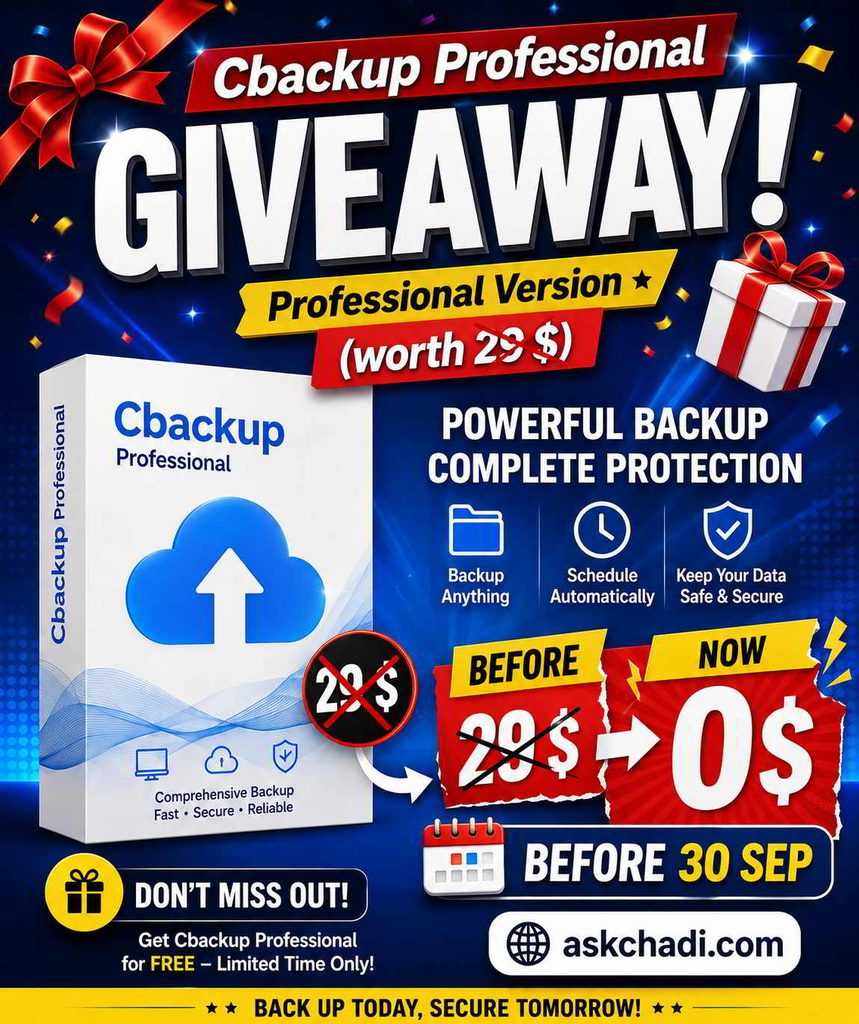
This article covers a promotional CBackup Professional offer shown in the supplied reference image and earlier campaign material. The offer presents a Professional license at no cost for a limited period ending September 30. Because giveaway terms can expire or change, readers should verify the current campaign page before installing or entering a code.
The official CBackup website confirms that its Windows software supports system, disk, partition, and file backup, along with synchronization and disk cloning.[1] The official download page also describes CBackup as free to download for supported Windows versions.[2] The promotional page supplied for this article is available at the official CBackup giveaway link.
What CBackup Professional does
CBackup is designed for Windows users who need more than a basic copy-and-paste backup. It can be used to protect files, create system or disk images, synchronize folders, move Windows to another drive, and work with supported cloud destinations. The official feature documentation describes backup and restore for systems, disks, partitions, and selected files or folders.[1]
The most useful way to think about the application is as a set of connected jobs. A file backup protects changing documents. A system image helps preserve a working Windows environment. A clone assists with a drive upgrade. Synchronization keeps copies aligned, while versioned backups provide a better recovery path after accidental changes.
| Use case | What it helps you do | Best practice |
|---|---|---|
| Windows backup | Save system, files, disks, or partitions | Keep at least one independent destination |
| HDD-to-SSD migration | Move Windows and data without a complete reinstall | Back up important files before cloning |
| Scheduled backup | Automate daily, weekly, or monthly jobs | Review task history and test restoration |
| File synchronization | Keep folders updated across locations | Do not rely on sync as your only backup |
| Cloud backup | Create a second or off-site copy | Review privacy, storage, and account security |
Full CBackup feature list
System and file backup
Back up the full Windows system, a disk, a partition, or selected files and folders according to the recovery goal.
Automatic schedules
Create recurring jobs so important files are protected without depending on memory or manual copying.
Incremental and differential protection
Reduce repeated copying after a full backup while keeping enough versions for recovery.
Disk cloning
Clone a full disk or partition when upgrading storage, migrating Windows, or preparing a replacement drive.
Multiple sync modes
Use mirror, real-time, or two-way synchronization for different file-availability needs.
Cloud-to-cloud workflows
Back up or sync supported cloud files between services without treating one account as the only copy.
The official feature page also describes version management, file filtering, notifications, flexible restore, and cloud encryption.[1] These vendor-described features should still be tested in the exact edition and plan you activate.
How to clone Windows from HDD to SSD
One of the strongest reasons to consider a backup-and-clone tool is a storage upgrade. Moving from an older hard disk to an SSD can improve responsiveness, but cloning should be approached as a recovery operation rather than a casual file transfer.
Check the destination drive
Confirm that the SSD has enough usable capacity for the operating system, applications, and data you want to migrate.
Create a separate backup
Save irreplaceable documents and photos somewhere independent before starting the clone. A clone can reproduce unwanted changes or corruption.
Select source and target carefully
Double-check the disk names and directions in the cloning wizard. Selecting the wrong target can overwrite data.
Test the new drive
After migration, confirm that Windows boots, files open, and important applications work before retiring or wiping the old drive.
How to download and install CBackup safely
Use the official CBackup download page or a trusted product link. The official page lists supported Windows versions and provides a direct freeware download.[2] Avoid software mirrors that rename installers, inject advertising, or make an unverified license code the main reason to install an unknown file.
Readers comparing other utilities can browse the free computer programs section on AskChadi. Before running any installer, verify the publisher, scan the file with your security tools, and keep your operating system updated.
License code and activation checks
The earlier campaign image supplied for this article displayed a CBackup Professional code: CBPC-TUNMQ-TNN16-DOPYP. This code is included here only as a reference to the supplied promotion. It is not a guarantee that the code remains active, applies to every edition, or works after the stated deadline.
Open the official giveaway page →
Before entering a promotional code, confirm whether it activates Professional or another edition, how long the activation lasts, how many devices it covers, whether it is region-limited, and whether the software has renewal conditions. The official registration guide explains that license codes are entered from the program’s Register menu and that paid editions may have registration restrictions.[3]
Why a 3–2–1 backup plan still matters
Even a capable backup application should be part of a broader plan. Keep three copies of critical data, use two storage types, and keep one copy away from the main computer. For ransomware resilience, consider an offline or disconnected copy and test restoration regularly. A single cloud account or a single permanently attached external drive is not a complete disaster-recovery strategy.
Remember the difference between protection types: a clone helps you migrate or replace a drive; synchronization helps keep locations aligned; a versioned backup helps you recover from unwanted changes. Combining them can create a more resilient workflow.
Frequently asked questions
Is CBackup Professional free?
CBackup offers a free download and paid editions. The promotional Professional offer discussed here may be time-limited. Verify the current duration and activation conditions on the official CBackup page.
Can I use CBackup to clone an HDD to an SSD?
Yes, the official feature pages describe OS migration and disk cloning. Check the target drive capacity, create a separate backup, and test the migrated system before wiping the old disk.
Is the CBackup license code permanent?
Not necessarily. Duration, edition, device limit, region, and activation rules depend on the specific offer. Do not assume that a limited-time giveaway creates a permanent entitlement.
Is file synchronization the same as backup?
No. Synchronization keeps files aligned, while versioned backups are designed to help recover from deletion, corruption, or unwanted edits.
Does CBackup support cloud backup?
The vendor describes PC-to-cloud and cloud-to-cloud backup and synchronization for selected services. Check current compatibility, storage limits, privacy terms, and restoration options before setup.
Final verdict
CBackup Professional is worth investigating if you want Windows backup, restore, synchronization, disk cloning, OS migration, and cloud-related workflows in one application. The strongest setup combines regular file protection, periodic system images, an independent local destination, an off-site copy, and restore testing.
The most important part of this giveaway is not the word “free.” It is verifying the source, the exact license terms, the download file, and the recovery process. If the offer shown in the reference material is still active, use it only through the proper official activation flow.
For more software and internet guides, visit the AskChadi article archive or return to the AskChadi homepage.